 maskwire
Sign in ↗
maskwire
Sign in ↗ Setting up Apple Mail and Thunderbird
Apple Mail can configure itself from a profile your Maskwire dashboard generates. Thunderbird has no such shortcut, so that one's a manual IMAP/SMTP setup, entered through its "manual config" flow rather than the usual sign-in screen.
First time here? Start with the short setup guide.
Before you start
Sign up at app.maskwire.com and connect your real mailbox: enter your existing provider's IMAP and SMTP credentials once, in your Maskwire dashboard, so Maskwire can store them encrypted and proxy your connection.
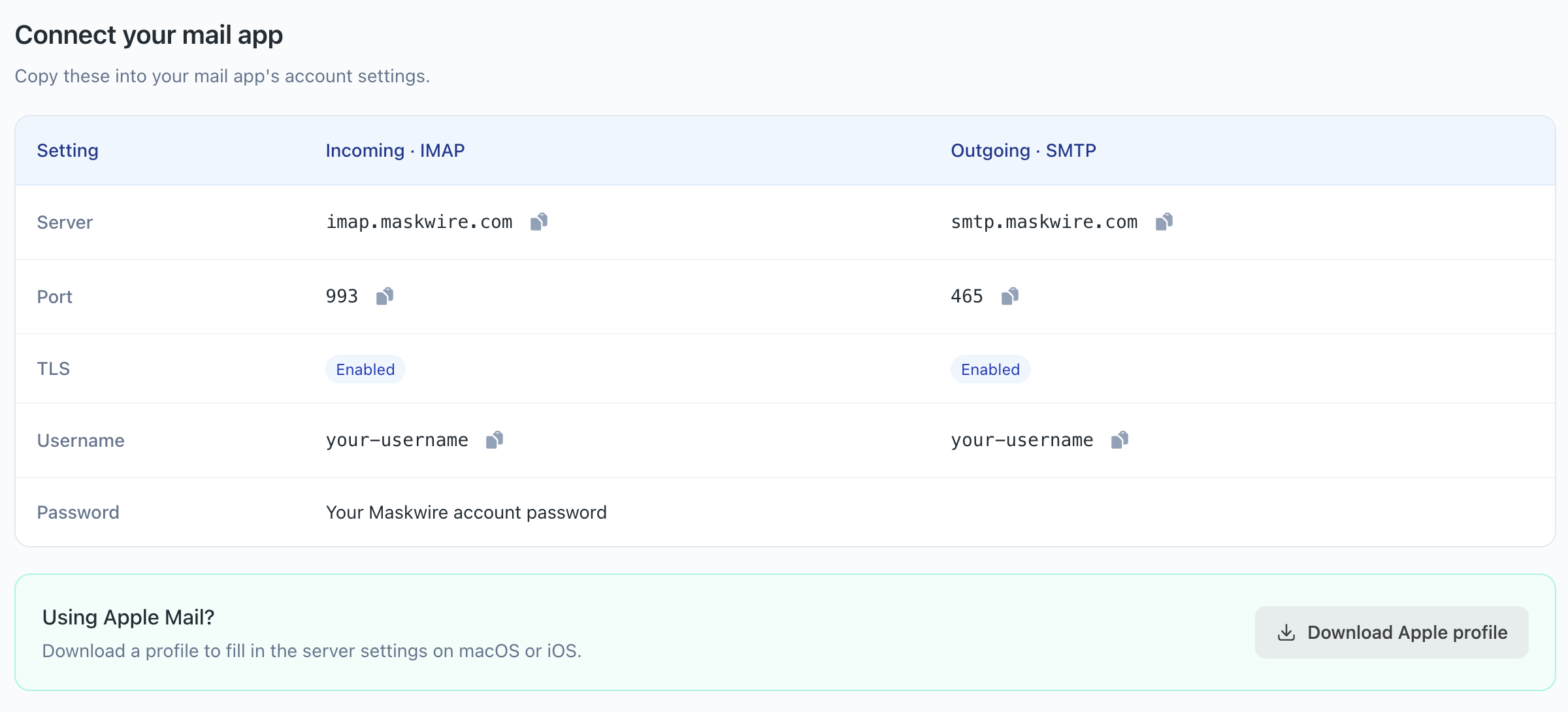
Home's Connect your mail app table then shows the exact host, port, TLS setting, and username to use, plus a note that the password is your Maskwire account password. Use those values over anything printed here if the two ever disagree; Maskwire's infrastructure can change without every guide catching up.
Server settings
IMAP Server: imap.maskwire.com
IMAP Port: 993 (implicit SSL/TLS)
SMTP Server: smtp.maskwire.com
SMTP Port: 465 (implicit SSL/TLS)
Username: the IMAP/SMTP Username shown in your dashboard
Password: your Maskwire account password
That username is a generated identifier tied to your connected mailbox, not your Maskwire account email. Copy it from the dashboard rather than typing your email address into the username field.
Apple Mail (macOS and iOS)
Home has a Download Apple profile button. Installing the profile fills in the host, port, TLS setting, and username for you, both directions, and only prompts you for your Maskwire account password. One catch: the profile sets the account's visible address to your Maskwire signup email. If that's the same address as the mailbox you connected, you're done; if it isn't, edit the account's email address in Mail's settings after installing, or use manual setup below instead.
To set it up manually instead:
- On a Mac, go to Mail > Settings > Accounts and click the + button. On an iPhone or iPad, there's no equivalent inside Mail itself: open the Settings app and look for Mail's account list there (the exact path has moved between iOS versions, most recently to Settings > Apps > Mail, so search Settings for "Mail" if you don't see it where you expect), then add an account from there.
- Choose Other Mail Account (or just Other on iOS) and enter your name and the address of the mailbox you connected in your dashboard (not necessarily your Maskwire login email). Don't enter your real Maskwire password yet: if that address's domain has its own working autodiscovery, Mail can try to connect straight to your real provider with whatever password you typed, before you get a chance to redirect it. Use a placeholder password for this first attempt.
- Mail will either fail to connect or offer to finish setup on its own; either
way, don't accept what it found. Reject or replace those settings and enter the
servers below explicitly, then go back and enter your real Maskwire password only
once
imap.maskwire.comandsmtp.maskwire.comare both set. - Under the incoming mail server, enter
imap.maskwire.comand your dashboard's IMAP username in place of the email address it suggests. Under the outgoing mail server, entersmtp.maskwire.comand the SMTP username from your dashboard. - Save the account with just the hostnames, usernames, and password. On both
macOS and iOS, port and SSL are usually not on that first screen; after saving,
open the account's advanced incoming settings and its SMTP server's outgoing
settings to explicitly set port
993with SSL for incoming and port465with SSL for outgoing, since Mail won't always guess implicit TLS on its own.
Thunderbird
- Open Account Settings (or the Account Setup screen on first run) and choose to add a mail account.
- Enter your name and the address of the mailbox you connected in your dashboard (not necessarily your Maskwire login email). Leave the password blank or use a placeholder for now: if that address's domain has working autodiscovery, Thunderbird can try logging in to your real provider with it before you reach the manual step below.
- Before letting Thunderbird's automatic lookup finish, click Configure manually (or open Advanced config if it already guessed a provider), then enter your real Maskwire password once the servers below are set.
- Set the incoming server to IMAP,
imap.maskwire.com, port993, connection security SSL/TLS, username the IMAP username from your dashboard, authentication Normal password. - Set the outgoing server to SMTP,
smtp.maskwire.com, port465, connection security SSL/TLS, username the SMTP username from your dashboard, authentication Normal password. - Finish setup. Thunderbird may show an information message that it doesn't
recognize the server as a known provider; that's fine, ignore only that specific
message. Don't dismiss or click through any certificate, trust, or TLS warning:
those mean the connection isn't reaching
imap.maskwire.comorsmtp.maskwire.comthe way you expect, and accepting one could hand your credentials to the wrong server.
What your login is actually doing
Maskwire stores your real provider's IMAP/SMTP credentials encrypted, using a key that's itself locked to your Maskwire password. Your Maskwire password is never written to disk on Maskwire's side; it only exists for the moment your client logs in, long enough to decrypt your stored upstream credentials so Maskwire can open a connection to your real mail server on your behalf.
That's why your client authenticates with your dashboard username and your Maskwire account password rather than your original provider's login: your provider never sees this connection at all, only the one Maskwire makes to it after decrypting your credentials.
If something doesn't work
- If your client keeps overwriting your manual settings with a guess, delete the account and redo setup, choosing manual/advanced configuration before any autodetect step runs.
- If mail never arrives, confirm you've connected the correct upstream mailbox in your Maskwire dashboard. A working login to Maskwire's proxy doesn't help if the stored upstream credentials point at the wrong account.
- If authentication fails outright, double check you used the IMAP/SMTP username from the dashboard rather than your account email.