 maskwire
Sign in ↗
maskwire
Sign in ↗ Getting started with Maskwire
Keep your mailbox and mail app. Maskwire sits between them and applies the tools you choose as mail passes through.
Tell Maskwire where your mailbox lives
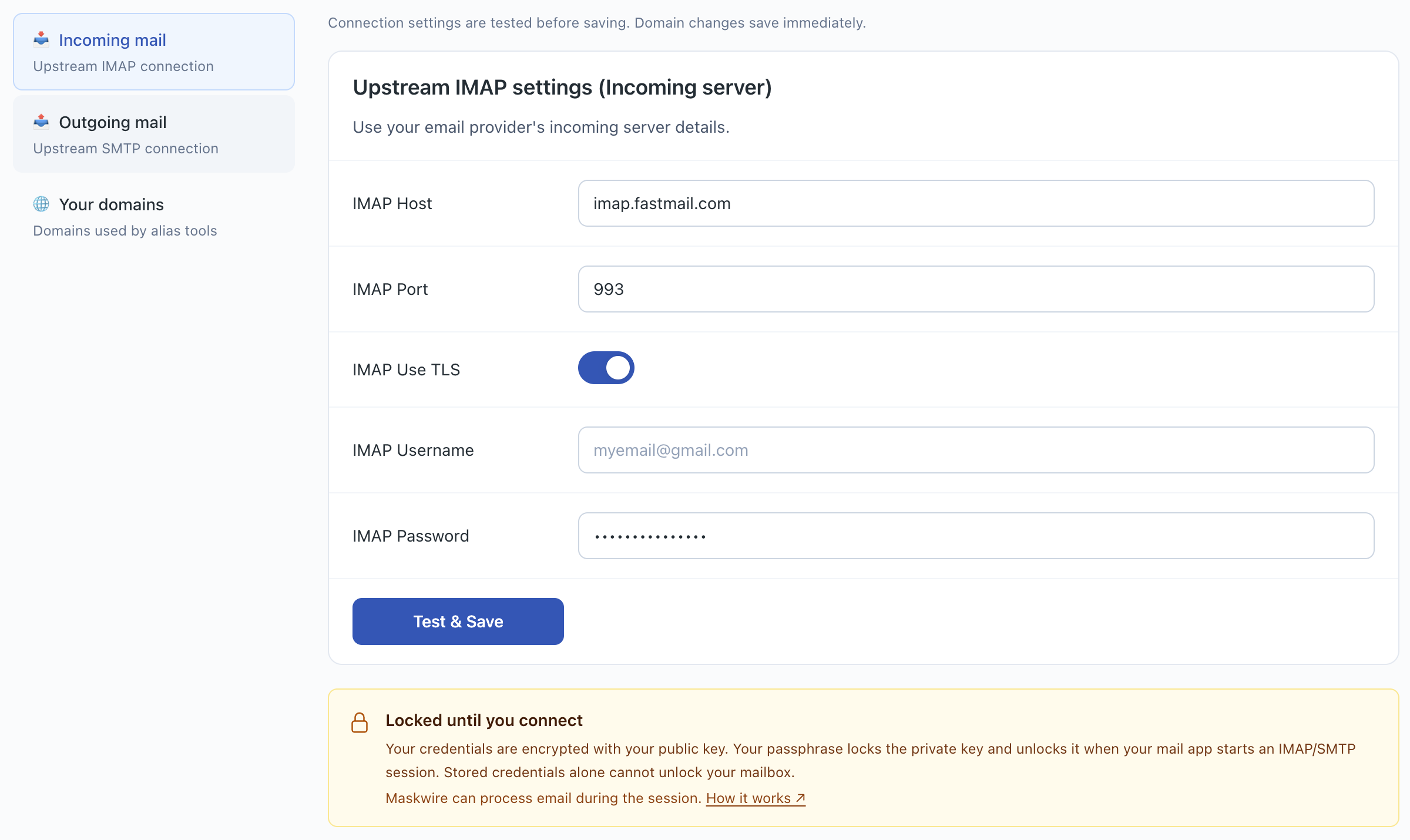
Open Settings. In Incoming mail, enter your provider’s IMAP host, port, TLS setting, username, and password. Click Test & Save, then repeat in Outgoing mail for SMTP.
Use the details from your provider’s help page here. These are your provider credentials, not your Maskwire login.
Copy the connection details from Home
Open Home and find Connect your mail app. Add an account in your mail app using the incoming and outgoing settings shown there.
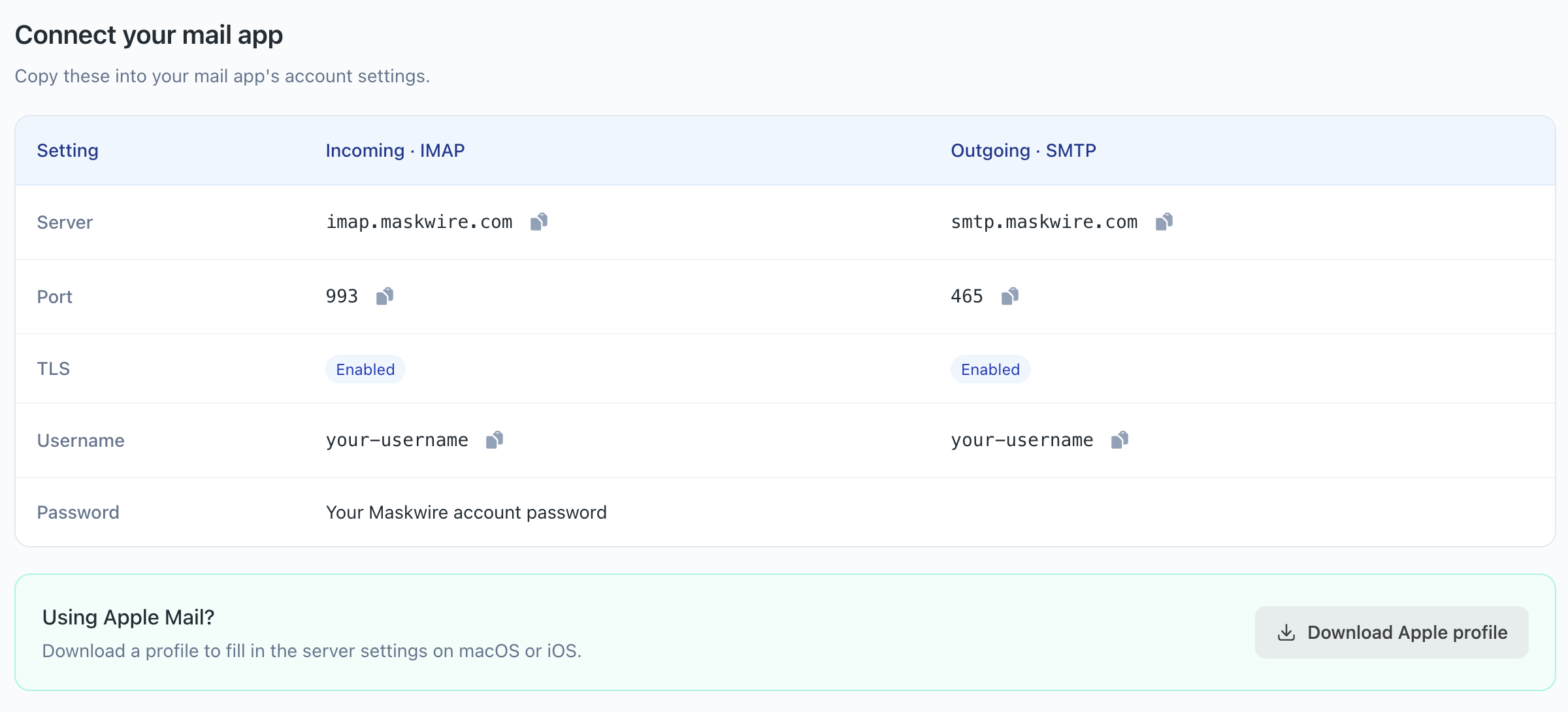
Username: copy the username shown on Home.
Password: use your Maskwire account password.
Apple Mail? Use Download Apple profile on Home to fill in the server settings.
Choose manual setup before entering your Maskwire password so your app doesn’t send it to an automatically discovered provider. Follow the Apple Mail or Thunderbird steps →
Choose what changes
Open the Toolbox, select a tool, turn on its switch, and configure its rules before trying it. Start with one so you can check what it does. For alias tools, add your domain in Settings → Your domains, and make sure your provider allows sending from that alias.
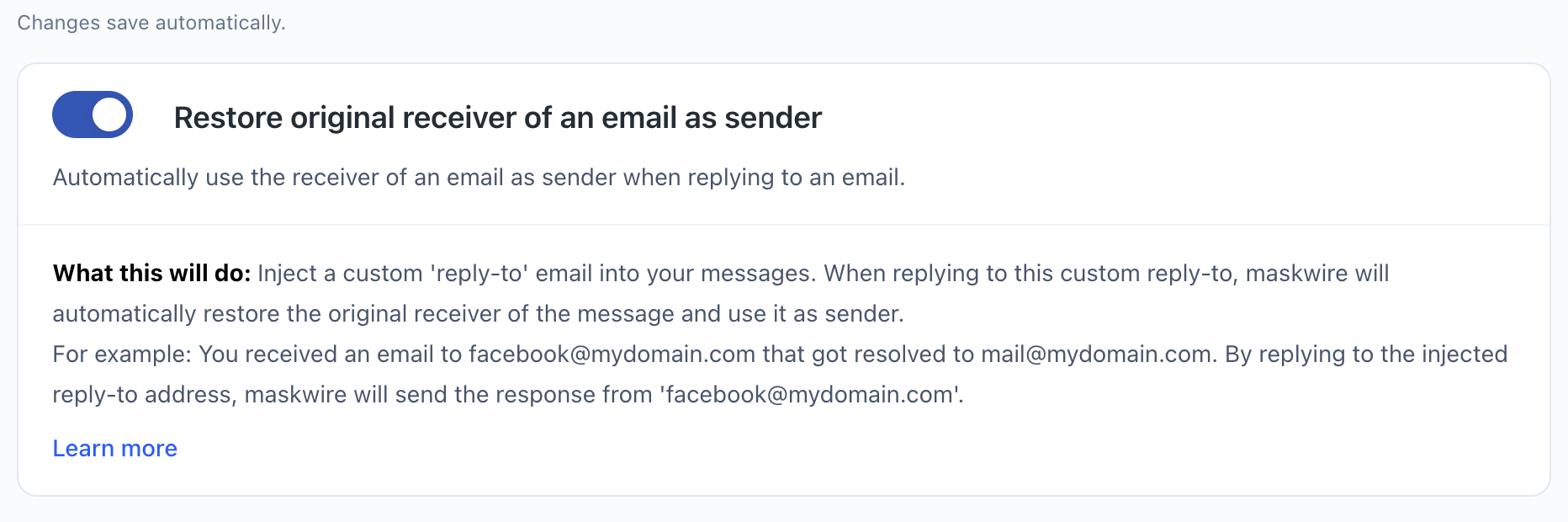
Try replying from the alias that received a message, or one of the tools below.
- List-Unsubscribe Rewrite
- Rewrites unsubscribe headers for masked addresses. This applies to the unsubscribe action in your mail app, rather than every link in an email’s body.
- Deletion protection
- Redirects moves or copies to a folder named Trash into your chosen folder. Turn it on, then set an existing destination such as Archive before trying it. It does not intercept every kind of deletion.
- Message age limiter · experimental
- Choose an age cutoff and a mailbox pattern, such as INBOX or * for all mailboxes, to hide older messages from the connected client. This does not delete those messages from your provider.
Send a test email, then reply
Check both sending and receiving through the new account. If you enabled a tool, check the result and look in Logs for its recorded activity.
Once it works, disable the old direct connection in your mail app if you see duplicate messages. Keep your provider account and mailbox.
If sign-in fails, recheck both provider connections in Settings and the username copied from Home. Don’t accept certificate or TLS warnings.